Beta for macOS · AI assistant built in
Interactive LMS courses with an AI co-author
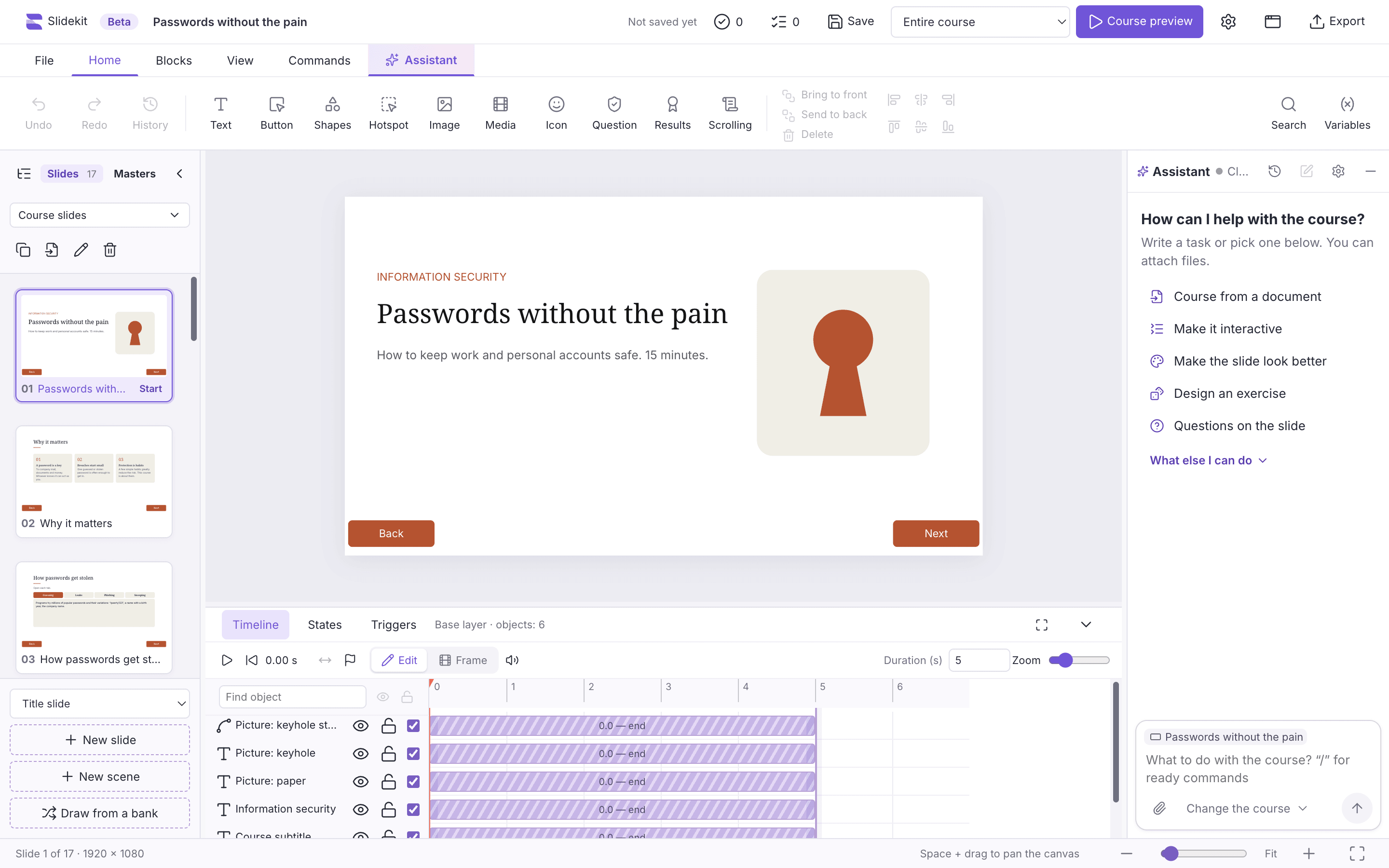
Slidekit is a desktop authoring tool with an AI assistant beside every slide. Attach a document and get slides, quizzes and interactive exercises in your course’s own style — then fine-tune them on a real timeline with states and triggers, and export to SCORM, cmi5 or xAPI.
The beta is free — now onboarding our first pilot teams
Formats LMSs understand
SCORM 1.2 works with Moodle, WebTutor and most LMSs
- SCORM 1.2
- SCORM 2004
- cmi5
- xAPI
- Web page
AI assistant
An AI co-author that works inside your course
Open the assistant beside the slide and say what you need in plain words. It knows the course — its slides, master, colors, fonts and slide size — and every change it makes is one step you can undo.
AI is optional. Without it, the editor works offline and sends nothing anywhere.
From documents to a course
Attach a Word document, a PowerPoint deck, screenshots or — with Claude — a PDF. The assistant offers a plan first: slides, their layouts and knowledge-check questions, and builds them after your “yes”.
Layouts in your course’s style
“Make the slide look better” re-lays out the slide with the course’s own colors, fonts, type scale and corner radius, keeps every object inside the slide, then reviews a snapshot of the result and fixes what’s off.
Exercises beyond ready-made blocks
A scenario with choices and feedback, a hunt for mistakes, a checklist with a counter — built from ordinary objects with their own states and triggers, so you can change any part of it.
Logic in plain words
Describe triggers in a sentence, ask for a progress bar on the master, or have the assistant explain what happens on a slide — variables, conditions, layers and all.
Questions, text and accessibility
Questions for a slide or a final quiz, a narration script, shorter and clearer text, a consistent tone across the course, image descriptions, translation, and fixes for what the checks found.
You stay in control
“Only ask” mode for questions, a plan before big changes, “Show” and “Undo” on every change. Each course keeps its own chats, and the history brings back an earlier one.
Your model, your rules
Choose the assistant once in the settings, and every AI feature of the editor uses it.
Claude Code
Installed on your computer and running on your own Claude plan. Reads PDFs and images.
Codex
Installed on your computer and running on your own plan — read-only, with web search and plugins switched off.
Your company’s model
Any server with an OpenAI-compatible API, in your network or in the cloud. The key is encrypted by the system, and IT can set the model for every computer — and allow only that one.
How it works
From idea to LMS in six steps
Short clips recorded in the real editor, each in a single take with no editing.
Step 1 / 6
Start from a template
Safety briefing, onboarding, branching dialogue, a quiz with a question bank and a certificate, or a five-minute microcourse — in English or Russian. Pick the slide size and theme up front.
⌘/Ctrl+Nnew course
In the clip: the “New employee onboarding” template opens as a ready nine-slide course, and the course view shows how its slides connect.
Features
Everything an interactive course needs — in one window
Slidekit covers the whole path: from the first slide to the package a learner opens in the LMS.
Timeline and animation
When each object appears and leaves and how it animates — all on one timeline, with the narration’s waveform underneath. Cue points tie objects and triggers together.
Layers and states
Hover, pressed, selected, visited — every object has its own look. Layers show hints and feedback over the slide: a hint lets the slide play on, a window pauses it.
Triggers without code
Pick events, conditions and actions from lists. Variables keep score, remember choices and send learners down different branches, and the panel shows the order the slide’s triggers run in.
Scenarios and dialogues
A conversation with a character, a chat simulation and a video that ends in a decision are each built from their own window. Answers earn points and change how the character reacts; the outcome slide shows a message based on the total. The course view draws every branch, and Problems flags dead ends and unreachable slides.
Quizzes and certificates
Learners get a set number of questions from a bank, in order or shuffled, and several draws from one bank never repeat a question. Each quiz has a passing score, attempts and a timer, and a question or a draw can have its own time limit. The results slide shows a different message for each score range, a certificate with the learner’s name from the LMS prints or saves as PDF, and an answer sheet puts what the learner typed on one page. Edit a bank as a CSV table and load it back.
Preview with debugging
Check the course at laptop, tablet and phone sizes. The debug panel shows variables, object states and a trigger log with the condition that stopped a trigger. A learner’s saved progress from the LMS opens in the preview right where they left off.
Masters and blocks
Logo, navigation and layouts live on master slides, so one change shows across the course. A theme sets fonts and colors, any course can be the starting point for a new one, and tabs, accordions, processes and flashcards drop in as ready-made blocks — or save your own objects as a course block to reuse.
Import from PowerPoint and Figma
PowerPoint decks (.pptx) import as editable slides: text, shapes, images and notes. The Slidekit plugin for Figma brings frames over as editable objects, buttons with their states; during the beta we share it on request.
A course from a topic
Describe a topic and get a course plan — slide layouts, a narration script and questions — that you edit before it’s built. On a slide, a short form asks AI for a component or triggers.
Video, audio and narration
Record narration right in the editor, trim audio and set its volume, and edit WebVTT and SRT captions in the built-in editor — including shifting every caption at once.
Checks and accessibility
Problems finds links to deleted slides and missing files, text that doesn’t fit, low contrast, images without descriptions and narration without captions. All image descriptions are edited in one table, and drag and drop works from the keyboard.
Sign-off and teamwork
Reviewers comment on slides in the browser; experts can get a PDF with notes, the text as Markdown or the slides as PNG. Translation goes out as XLIFF and comes back with a preview, and version history compares an earlier course with the current one.
Why Slidekit
Made for teams that ship courses every week
Everything a course needs in one app on your computer — no cloud services, no required subscriptions.
Works offline
A course is a single .slidekit file on your disk. No servers, no accounts, no telemetry: the editor sends nothing on its own, so it also runs on computers with no internet access.
English and Russian
Interface, help, templates and the learner’s player in both languages, with Cyrillic fonts built in. Course settings choose the learner’s language and translate the player’s built-in labels — Next, Submit, Correct — in one step.
Built for LMS export
SCORM 1.2 for Moodle, WebTutor and most LMSs, plus SCORM 2004, cmi5 and xAPI. Every answer reaches the LMS as its own record, and the player tells learners when their progress is saved.
Your courses aren’t locked in
Host an exported package in any LMS or hand it to a client: the player inside is MIT-licensed. Keep a course as a folder in git and see every change.
Checked before export
Problems surface before a learner sees them, and some are fixed with one button — like “Shrink the text to fit”.
Mac now, Windows soon
A desktop app for Apple silicon and Intel Macs; a Windows 10/11 version is on the way. Learners take courses in a browser on a computer, tablet or phone, with the slide fitted to the screen.
- export formats
- 5
- question types
- 9
- scenario builders
- 4
- preview screen sizes
- 5
FAQ
Questions, answered
How much does Slidekit cost?
The beta is free, including for client work, and the courses you make in it stay yours. We will set pricing for the paid version together with our pilot teams.
Do I need an internet connection?
No. The editor works offline and without an account, and your courses stay on your computer. Only the AI assistant needs the internet, and so does dragging an image straight from a web page.
Where does my data go when I use AI?
To the assistant you chose: Claude Code or Codex installed on your computer, on your own plan, or your company’s model. It receives your request, the parts of the course it needs and the files you attach. Without AI, the editor sends nothing anywhere.
Can we use our company’s own AI model?
Yes. Point Slidekit to any server with an OpenAI-compatible API — a model in your network or a cloud one. The key is stored encrypted on the computer and never shown again. IT can set the model for every computer with a policy file and allow only that one.
Which LMS will my courses run in?
Courses export to SCORM 1.2, SCORM 2004, cmi5 or xAPI; for Moodle and WebTutor, use SCORM 1.2. Packages are checked automatically, and we test specific LMSs together with our pilot teams.
Can I stop learners from skipping slides?
Yes. The learner’s slide menu can allow jumping to any slide, only to slides already seen, or just show the course outline. At branch points and in dialogues, Next waits until the learner makes a choice.
Can I bring existing materials?
Yes: PowerPoint decks (.pptx), Figma frames through the Slidekit plugin, slides from another Slidekit course and questions from CSV tables or GIFT text. The AI assistant also builds slides from a document you attach.
What computer do I need?
A Mac with macOS 13 or later (Apple silicon or Intel) and a screen of at least 1280 × 720. A Windows 10/11 version is on the way. Learners only need a browser.
Can a team work on a course?
Yes, by exchanging files: reviewers comment right on the slides, translation goes out as XLIFF, version history keeps earlier states, and a course can live in git as a folder. There is no simultaneous cloud editing of one course.
Beta access
Be among the first to try Slidekit
The beta is a free download on GitHub. Leave your name and email to hear about new versions and the pilot — or message us on Telegram for a faster reply.
Telegram
We will answer questions, show you the editor and help you bring your first course over.
Message @nikitaav27